How Bad Actors Can Hide Outlook & Exchange Inbox Rules

It was a typical Monday morning. I sat down at my desk, ready to start the day, when I received a Microsoft Teams message from our cybersecurity department. Over the weekend, a breach had occurred that impacted several users.
Without going into sensitive detail, the attacker had gained access to user accounts and distributed a phishing campaign via a SharePoint file.
My task that morning was straightforward:
- Assist affected users with password resets
- Ensure multi-factor authentication (MFA) using an authenticator app was configured
- Restore access to their accounts
After working through this process with several users, I noticed a strange pattern: none of them had received any emails since Friday.
At first glance, this didn’t seem alarming — it was the weekend — but something felt off. I sent a test email to one of the accounts. It never appeared in the inbox.
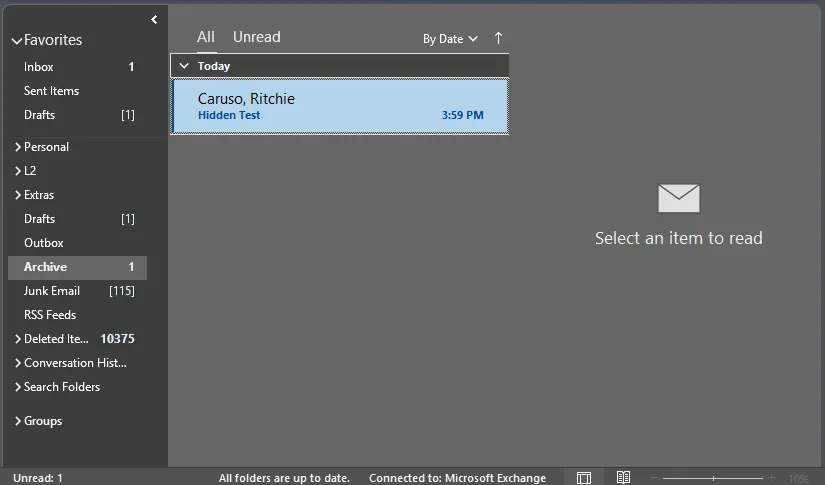
After searching Outlook, I discovered the message had arrived successfully, but it was sitting in the Archive folder, along with every other email received since Friday.
At this point, it became clear that an inbox rule was involved. However, when I checked the Outlook Rules and Alerts interface, no rules were visible.
After further research, I found multiple reports describing similar behaviour. That’s when I learned about a little-known — but highly effective — technique that allows attackers to hide Outlook/Exchange inbox rules from the Rules GUI entirely.
In this post, I’ll walk through:
- How this attack works
- How attackers hide inbox rules
- How to detect hidden rules
- How to remove them at scale across an organisation
The Attack
How Is the Attack Executed?
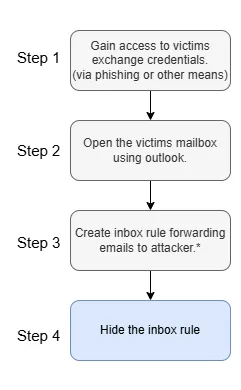
In our environment, external email forwarding was blocked. Instead of forwarding messages, the attacker created a rule that silently moved emails out of sight — buying time before the user realised their account had been compromised.
These actions are well suited to scripting and automation—particularly the creation of the malicious rule and the subsequent steps to conceal it from Outlook clients.
For simplicity, we’ll assume the attacker has already completed steps 1 and 2:
- Obtained valid credentials
- Logged into the victim’s mailbox via Outlook
Step 3: Create a Malicious Inbox Rule
The attacker creates an inbox rule that forwards or moves emails — for example, to the attackers email.
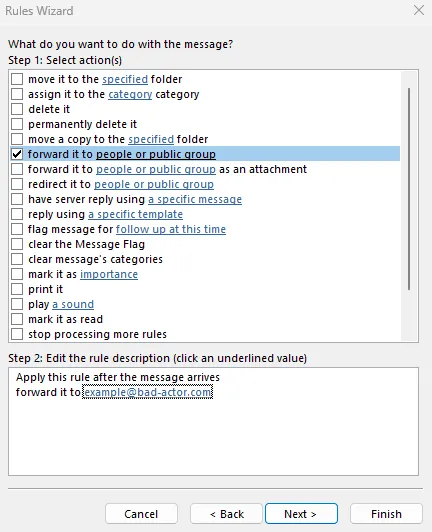
At this stage, the rule is still visible in the Rules and Alerts window.
Step 4: Hide the Rule
The next step is to make the rule nearly invisible.
This exploit abuses Microsoft’s Messaging API (MAPI), a middleware layer that allows applications like Outlook to interact with mailbox data.
To demonstrate, I used MFCMapi, a Microsoft-provided diagnostic tool available on GitHub.
In this example, the rule moves emails with the subject “Hidden Test” to the Archive folder.
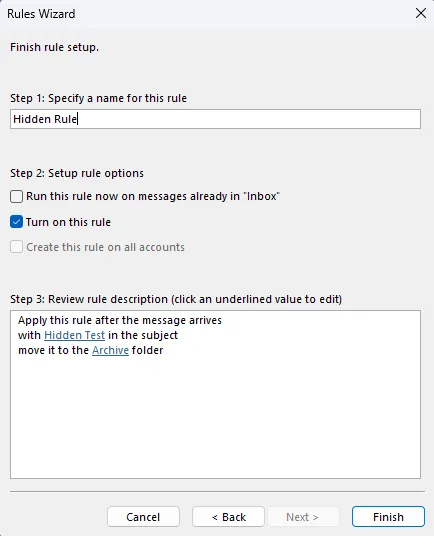
Hiding the Rule with MFCMapi
- Open the Inbox in MFCMapi
- Navigate to Folder → View → Hidden Contents
- Locate messages with the class
IPM.Rule.Version2.Message - Open the rule and locate the following properties:
PR_RULE_MSG_NAMEPR_RULE_MSG_PROVIDER
- Clear the value fields for both properties
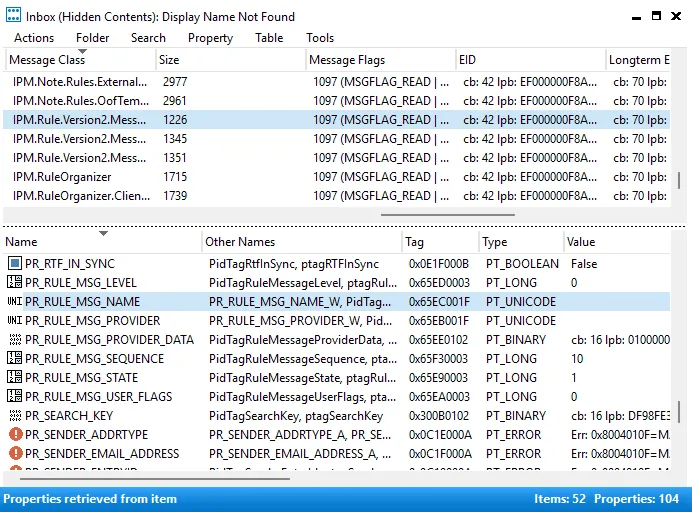
Once modified, the rule no longer appears in Outlook or standard administrative interfaces.
Detecting Hidden Inbox Rules
After hiding the rule, the Rules and Alerts window appears empty:
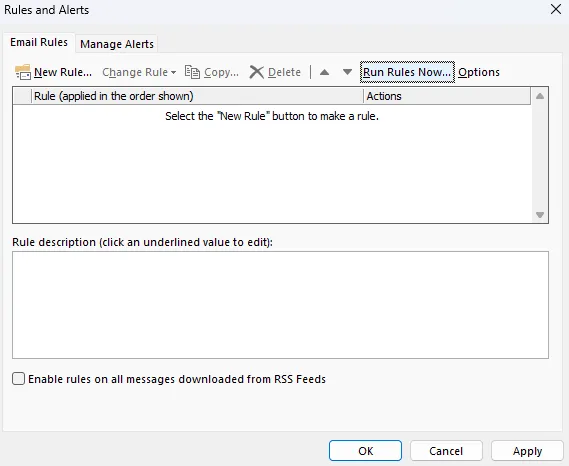
However, the rule is still active.
After sending a test email that meets the rule’s criteria, the message is silently moved to the Archive folder:
Detecting Hidden Rules with PowerShell
Manually inspecting mailboxes with MFCMapi does not scale. Fortunately, PowerShell provides visibility into hidden rules.
First, connect to Exchange Online:
Connect-ExchangeOnline
Then query inbox rules, including hidden ones:
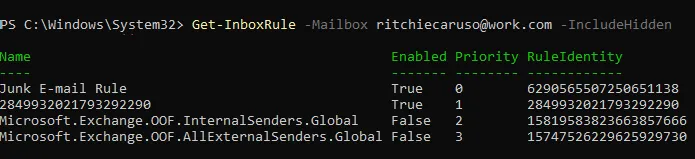
Get-InboxRule -Mailbox example@example.com -IncludeHidden
Hidden rules appear with a numeric string.
Removing Hidden Rules
There are two effective removal methods.
Option 1: Powershell (Recommended)
Remove-InboxRule -Mailbox example@work.com -Identity "RULE_ID"

Option 2: Outlook Clean Rules Flag
outlook.exe /cleanrules
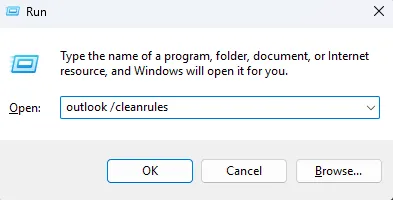
⚠️ Warning: This removes all inbox rules for the user.
Scanning the Entire Organisation
To ensure no hidden rules remain across the tenant, I wrote the following PowerShell script:
$mailboxes = Get-EXOMailbox -ResultSize Unlimited
$output = @()

foreach ($mailbox in $mailboxes) {
    $hiddenrules = Get-InboxRule -Mailbox $mailbox -IncludeHidden |
        Where-Object {
            $_.Name -notin (Get-InboxRule -Mailbox $mailbox).Name -and
            $_.Name -ne "Junk E-Mail Rule"
        }

    if ($hiddenrules) {
        foreach ($rule in $hiddenrules) {
            $output += [PSCustomObject]@{
                Email = $mailbox.UserPrincipalName
                Rule  = $rule.Name
            }
            Write-Host $mailbox.UserPrincipalName $rule.Name -ForegroundColor Red
        }
    }
}

$output | Export-Csv "OUTPUT_PATH.csv" -NoTypeInformation
This produces a list of mailboxes with suspicious hidden rules.
Inspecting Rule Behaviour
To understand what a hidden rule actually does:
$output = @()
$rules = Get-InboxRule -Mailbox "EXCHANGE_EMAIL" -IncludeHidden |
    Select-Object Name, Description

foreach ($rule in $rules) {
    $desc = $rule.Description -replace "`r?`n", " "
    $output += [PSCustomObject]@{
        RuleName = $rule.Name
        RuleDesc = $desc
    }
}

$output | Export-Csv "OUTPUT_PATH.csv" -NoTypeInformation

This allows you to determine whether the rule is malicious or benign.
Final Thoughts
A compromised account cannot always be considered secure after a password reset and session token revocation alone.
Hidden inbox rules are a powerful persistence mechanism that can:
- Suppress security alerts
- Hide user communications
- Enable long-term access to information without detection
Microsoft does not currently classify this behaviour as a vulnerability, as it requires authenticated access. However, it is difficult to identify any legitimate use case for completely hiding inbox rules.
As a result of this incident, we now:
- Periodically scan for hidden inbox rules
- Continue to restrict external email forwarding
- Complete an in-depth forensic investigation into any breaches
What began as a routine Monday quickly turned into a deep investigation, remediation effort, and a reminder that mailbox persistence techniques can be subtle yet highly effective.
Stay vigilant — and don’t rely on the Rules GUI alone.